Guide
How to Track Inventory in Excel
You do not need inventory software to know what you have, what it is worth and what to reorder. A well-built spreadsheet does it, as long as each number is typed only once.
Start with one product list
Give every product a short code and keep one list with its name, its landed cost and its price. Every other sheet should look products up from this list by code. If a cost changes, you change it in one place.
Record what comes in and what goes out
Stock on hand is what you started with, plus what you received, minus what you sold. Keep your sales as a list of order lines with a product code and a quantity, and let the spreadsheet add up the units sold for each product. The SUMIF function does this.
Set a reorder level for each product
The reorder level is the stock you need to cover sales while a new order is on its way, plus a cushion for delays. Multiply the units you sell in a day by the days your supplier takes, and add a few days more.
Then let the spreadsheet compare stock on hand with the reorder level and show a clear word such as REORDER, so you can see at a glance what needs ordering.
Know what your stock is worth
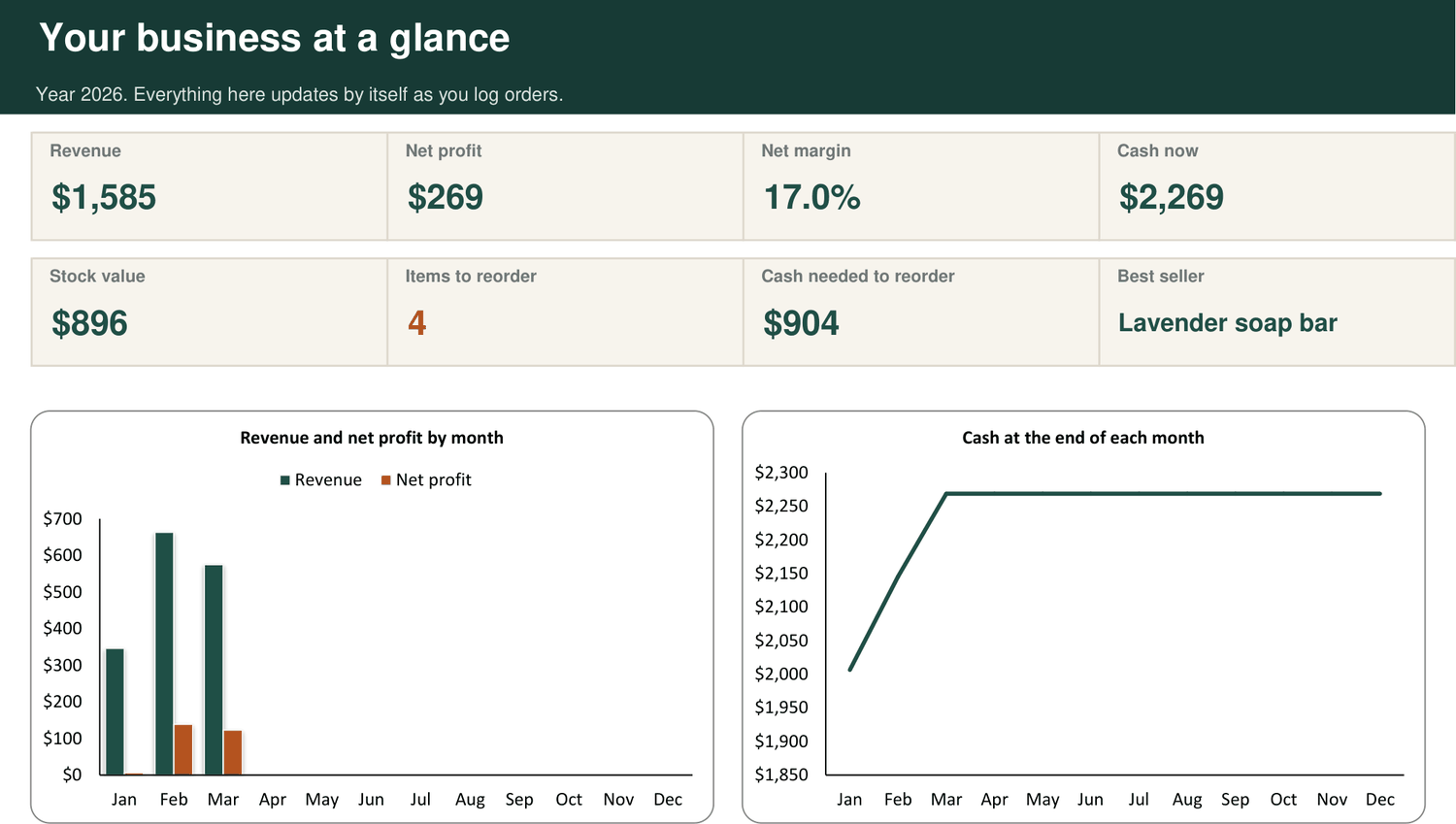
Multiply the stock on hand by the landed cost for each product and add up the column. That total is cash sitting on your shelves. Watching it month by month tells you whether you are buying more than you sell.
Count it for real
Spreadsheets drift from the shelf: things break, go missing or get miscounted. Count your stock on a regular schedule, correct the numbers, and look into any product that is often out.